
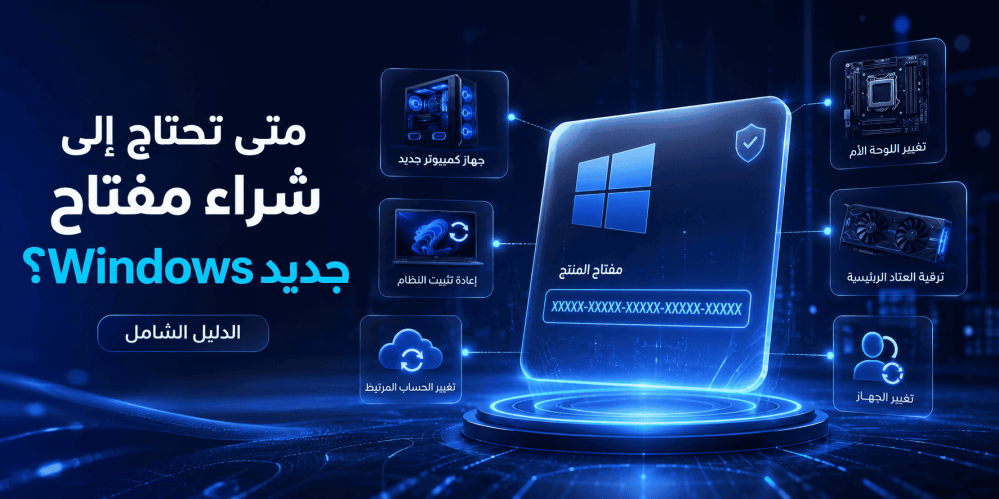
When Do You Need to Buy a New Windows Key? The Complete Guide
Introduction
The Windows operating system is the backbone of most computers around the world, whether you use it for work, study, or entertainment. But at some point, you may find yourself asking: Do I need to buy a new Windows key?
This question crosses the minds of many users when building a new PC, after a motherboard failure, or even when trying to reinstall the system. The truth is, the answer is not the same for everyone—it depends on a range of factors and circumstances unique to each user.
In this comprehensive guide, we will help you understand all the situations where you actually need to buy a new Windows key, and the situations where you can do without one. We will also cover the different license types, how to check your activation status, and important tips before making a purchase.
If you are looking for a genuine Windows key at an affordable price, keep reading until the end, where we will point you toward the available options.
What Is a Windows Key and Why Is It Necessary?
Definition of a Windows Key
A Windows key—also known as a Product Key—is a unique 25-character alphanumeric code used to verify that the copy of Windows you have installed is genuine and licensed by Microsoft. The key consists of five groups, each containing five characters, separated by hyphens, in the following format:
XXXXX-XXXXX-XXXXX-XXXXX-XXXXX
The Difference Between a Windows Key and a Windows License
Many users confuse the concept of a Windows key with that of a Windows license, but there is a fundamental difference between the two:
- Windows Key (Product Key): This is the code you enter during or after system installation to activate Windows. It acts as the "password" that proves you purchased the license.
- Windows License: This is the legal right to use a copy of Windows. The license defines the terms and conditions, such as the number of allowed devices, transferability, and type of use.
In other words, the key is the means, and the license is the right. You can obtain a key without a legal license (such as pirated keys), in which case Windows may work temporarily but is not legal.
The Importance of Using a Genuine Windows License
Using a genuine Windows key is not just a legal obligation—it carries important practical benefits:
- Receiving all security updates: Regular updates from Microsoft protect your device from security vulnerabilities and malware.
- Access to all system features: Some customization and security features only work with an activated copy of Windows.
- Official technical support: You can contact Microsoft Support when facing any issue.
- Stability and performance: Genuine copies are more stable and do not suffer from compatibility issues or annoying ads.
- Peace of mind: No need to worry about the "Your Windows is not genuine" message appearing or the system suddenly stopping.
Situations Where You Need to Buy a New Windows Key
There are several scenarios that require buying a new Windows key. Let's explore them in detail:
1. Building a Brand-New Computer
If you are assembling a computer from scratch, you absolutely need a new Windows key. New hardware does not come with a pre-installed operating system unless you buy a ready-made device from a manufacturer like Dell, HP, or Lenovo.
When building a new PC, you will need to:
- Purchase a genuine Windows key.
- Download the Windows installation tool from the official Microsoft website.
- Create installation media (USB or DVD).
- Install Windows and enter the key.
Tip: If you are building a PC for home use, Windows 11 Home is the ideal choice. It provides all the essential features you need at a reasonable cost.
2. Replacing the Motherboard
Replacing the motherboard is one of the most common reasons for needing to buy a new Windows key, especially if you are using an OEM license.
The motherboard is considered the "heart" of the device, and OEM licenses are tied to the device (specifically the motherboard). When replacing the motherboard:
- If you have an OEM license: You will need to buy a new key in most cases. Microsoft considers changing the motherboard as equivalent to a new device.
- If you have a Retail license: You can transfer the license to the new device (i.e., after replacing the motherboard) without needing to buy a new key.
- If you have a digital license linked to a Microsoft account: You can try to restore activation through your Microsoft account, and the process may succeed in some cases.
3. Buying a Device Without an Operating System
Some devices, especially business-oriented laptops or custom-built PCs, are sold without an operating system or with FreeDOS or Linux. In this case, you will need to buy a new Windows key if you want to install Windows.
4. License Expiration or Blocking
In some rare cases, your Windows key may be blocked by Microsoft. This usually happens when:
- The key was used illegally or distributed widely.
- The key was reported as stolen.
- You significantly violated the license terms.
- You bought the key from an untrustworthy source.
If you receive a message that your key is blocked, the only solution is to buy a new Windows key from a reliable source.
5. Using a Non-Genuine Copy of Windows
If you are using an unactivated copy of Windows or one activated with a pirated key, it is time to buy a genuine Windows key. Non-genuine copies:
- Do not receive important security updates.
- Display an annoying watermark on the desktop.
- May contain malware.
- Lack customization features.
- May stop working at any moment.
6. Upgrading from Home to Pro Edition
If you are using Windows 11 Home and need advanced features such as BitLocker, Remote Desktop, or Hyper-V, you will need to upgrade to Windows 11 Pro. This requires buying a new Windows 11 Pro key.
7. Needing a Commercial or Educational License
If you run a business or educational institution, you may need special licenses (Volume Licensing) that differ from individual licenses. These licenses require purchasing special keys from Microsoft or authorized partners.
Situations Where You Do Not Need to Buy a New Windows Key
Fortunately, there are many situations where you can save money and avoid needing to buy a new Windows key:
1. Reinstalling Windows on the Same Device
If you want to reinstall Windows on the same device (same motherboard), you do not need a new key. Once you reinstall, Windows will automatically recognize the digital license stored on Microsoft's servers or in the BIOS/UEFI.
2. Changing Device Components (Except the Motherboard)
Changing components such as:
- RAM
- Hard drive (HDD/SSD)
- Graphics card (GPU)
- Power supply (PSU)
- Fans and cooling system
None of these changes affect your Windows license, and you will not need a new key.
3. Free Upgrade from Windows 10 to Windows 11
Microsoft still offers a free upgrade from Windows 10 to Windows 11 for eligible devices. If your device is running a genuine copy of Windows 10, you can upgrade to Windows 11 without buying a new Windows key.
4. Having a Digital License Linked to a Microsoft Account
If you have linked your Windows license to your Microsoft account, you can restore activation after changing some device components (including the motherboard in some cases) through the troubleshooter tool.
To do this:
- Go to Settings > Update & Security > Activation.
- Select Troubleshoot.
- Choose I changed hardware on this device recently.
- Sign in with your Microsoft account and select the device you want to restore the license to.
5. Buying a New Device with Windows Pre-Installed
If you buy a ready-made laptop or desktop from a major manufacturer, it usually comes with Windows pre-installed and pre-activated. In this case, you do not need to buy an additional key.
Types of Windows Licenses in Detail
To understand when you need to buy a new Windows key, it is essential to understand the types of licenses available:
OEM License (Original Equipment Manufacturer)
An OEM license is the license that comes pre-installed on new devices from manufacturers such as Dell, HP, Lenovo, and Asus.
Characteristics of an OEM License:
- Tied to the device (motherboard) and cannot be transferred to another device.
- Lower in price than a Retail license.
- Technical support comes from the device manufacturer, not directly from Microsoft.
- When the motherboard is replaced, the license becomes invalid.
Retail License
A Retail license is the license you purchase separately, whether from the official Microsoft Store or from authorized retail stores.
Characteristics of a Retail License:
- Can be transferred from one device to another (as long as it is deactivated on the old device).
- Higher in price than an OEM license.
- Technical support comes directly from Microsoft.
- Greater flexibility in upgrading and changing device components.
Digital License
A digital license is a modern type of license that does not require manually entering a product key. Instead, the license is linked to your Microsoft account and/or the device.
Characteristics of a Digital License:
- No need to enter a key when reinstalling.
- Can be linked to a Microsoft account for easier transfer.
- Primarily used with free upgrades from Windows 10 to Windows 11.
Comprehensive Comparison Between License Types
| Feature | OEM License | Retail License | Digital License | |
| Price | Low | High | Varies | |
| Transferability | Non-transferable | Transferable | Transferable (with Microsoft account) | |
| Technical Support | From manufacturer | From Microsoft | From Microsoft | |
| Tied To | Motherboard | User | Microsoft account | |
| Flexibility | Limited | High | Medium to High | |
| Suitable For | Ready-made devices | PC builders and developers | Upgrades and modern installations |
How to Check Your Windows Activation Status
Before you decide to buy a new Windows key, first check the activation status of your current system:
Method 1: Through Settings
- Press Windows + I to open Settings.
- Go to System > Activation (in Windows 11) or Update & Security > Activation (in Windows 10).
- Look for the activation status:
- Windows is activated: Your system is activated and you do not need a new key.
- Windows is not activated: You need to buy a key and activate the system.
Method 2: Using Command Prompt
- Open Command Prompt as an administrator.
- Type the following command and press Enter:
slmgr /xpr
- A window will appear telling you the activation status.
Method 3: Checking the License Type
To find out the type of license installed on your device:
- Open Command Prompt as an administrator.
- Type the following command:
slmgr /dli
- A window will appear containing license information, including:
- License type (OEM, Retail, or Volume).
- Activation status.
- Part of the product key.
What to Do If You Lose Your Windows Key
Losing your Windows key does not necessarily mean you need to buy a new Windows key. Try these solutions first:
1. Check Your Microsoft Account
If you linked your license to your Microsoft account, you can easily recover it:
- Sign in to account.microsoft.com.
- Go to Devices and look for your device.
- The digital license will be linked to your account.
2. Use Key Recovery Tools
There are free tools that can extract the Windows key from the current system (if it is still installed):
- ProduKey by NirSoft
- ShowKeyPlus from the Microsoft Store
- Belarc Advisor
Warning: Only use these tools on your personal device. Do not use them to extract keys from devices you do not own.
3. Check the Device Sticker
On older devices, you may find a sticker with the Windows key on:
- The bottom of the laptop.
- The side of the desktop.
- Inside the original device box.
4. Contact Microsoft Support
If you have proof of purchase (an invoice or receipt), you can contact Microsoft Support to help you recover the key.
Windows 11 Home – The Ideal Choice for Home Users
If you have decided that you need to buy a new Windows key, Windows 11 Home is the perfect choice for most home users.
What Does Windows 11 Home Offer?
- Modern user interface: A completely new design with a centered Start menu and rounded corners.
- Improved performance: Better memory and power management, meaning faster speeds and longer battery life.
- The new Microsoft Store: An improved app store with support for Android apps.
- Microsoft Edge: A fast and secure browser with advanced privacy features.
- Windows Hello: Secure login using facial recognition or fingerprint.
- DirectX 12 Ultimate: For the best gaming performance.
- Xbox app: To access the Xbox Game Pass library.
- Microsoft Teams: Integrated directly into the taskbar.
- Snap Layouts: To easily organize windows on the screen.
When Do You Need Windows 11 Pro Instead of Home?
If you need the following features, Windows 11 Pro may be a better choice:
- BitLocker: For full disk encryption.
- Remote Desktop: To connect to your device remotely.
- Hyper-V: To create virtual machines.
- Windows Sandbox: To test software in an isolated environment.
- Group Policy: To manage advanced settings.
But if you are an average home user, Windows 11 Home meets all your needs efficiently.
Important Tips Before Buying a New Windows Key
1. Buy from a Trustworthy Source
The most important tip of all: Do not buy a Windows key from untrustworthy sources. Keys that are too cheap may be:
- Stolen or hacked.
- OEM keys sold illegally.
- Educational or volunteer keys being resold.
- Fake keys that do not work.
Always buy from authorized and trustworthy stores.
2. Check Device Compatibility
Before buying a new Windows key, make sure your device meets the Windows 11 requirements:
| Requirement | Minimum | |
| Processor | 1 GHz or faster with at least 2 cores (64-bit) | |
| Memory | 4 GB RAM | |
| Storage | At least 64 GB | |
| Firmware | UEFI with Secure Boot support | |
| TPM | Trusted Platform Module 2.0 | |
| Graphics Card | DirectX 12 with WDDM 2.0 | |
| Display | At least 720p, 9 inches or larger |
3. Choose the Right Edition for Your Needs
- Windows 11 Home: For home use, gaming, and entertainment.
- Windows 11 Pro: For business, developers, and advanced users.
4. Keep a Copy of the Key
After purchasing, keep a copy of the key in a safe place:
- Write it in a text file and save it somewhere secure.
- Keep a copy in your email.
- Take a photo of the key and store it safely.
5. Link the License to Your Microsoft Account
After activation, link your license to your Microsoft account to make it easier to recover in the future:
- Go to Settings > Accounts > Your info.
- Select Sign in with a Microsoft account instead.
- Follow the instructions to link your account.
Conclusion
Buying a new Windows key is not necessary in all cases. Here is a quick summary:
You need to buy a new key when:
- You are building a new computer.
- You are replacing the motherboard (especially with an OEM license).
- You are buying a device without an operating system.
- You are using a non-genuine copy of Windows.
- You want to upgrade from Home to Pro.
- Your current key has been blocked.
You do not need to buy a new key when:
- You are reinstalling Windows on the same device.
- You are changing minor components like RAM or SSD.
- You are upgrading from Windows 10 to Windows 11 for free.
- You have a digital license linked to a Microsoft account.
- You are buying a new device with Windows pre-installed.
Ultimately, investing in a genuine Windows key is an investment in your device's security, stability, and your peace of mind. Choose the right license for your needs, buy from a trustworthy source, and link it to your Microsoft account to ensure easy recovery in the future.