
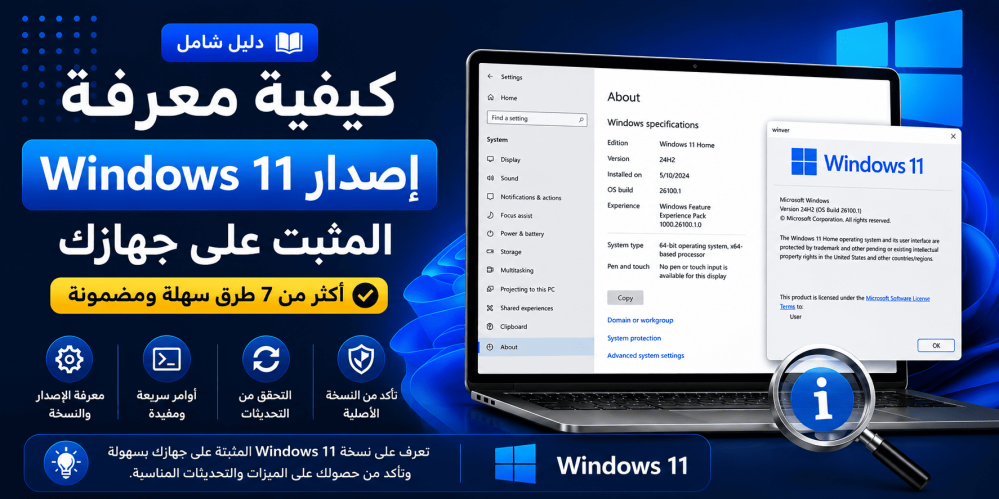
How to Check Which Version of Windows 11 Is Installed on Your PC
Whether you're installing new software, purchasing a genuine Windows license, troubleshooting a problem, or verifying compatibility, it's important to know exactly which version of Windows 11 is installed on your computer.
Many users confuse the Windows edition (such as Home or Pro) with the Windows version (such as 24H2 or 23H2). While they sound similar, they refer to different aspects of the operating system.
In this guide, you'll learn several official methods to identify your Windows 11 edition, version, OS Build, and system architecture.
Why Should You Check Your Windows 11 Version?
Knowing your Windows version helps you:
- Verify software compatibility
- Purchase the correct activation key
- Install the proper device drivers
- Receive accurate technical support
- Troubleshoot Windows issues
- Determine whether your PC needs an update
What Does "Windows Version" Mean?
Windows provides several pieces of information about your operating system.
| ItemExampleDescription | ||
| Edition | Windows 11 Home | The installed Windows edition |
| Version | 24H2 | The major Windows feature update |
| OS Build | 26100.xxx | The operating system build number |
| System Type | 64-bit | Your system architecture |
For example, two computers may both run Windows 11 Pro, but one could be on 23H2 while the other runs 24H2.
Method 1: Check Windows 11 Version from Settings
This is the easiest method for most users.
Steps
- Open Settings.
- Select System.
- Click About.
- Scroll down to Windows Specifications.
Here you'll find information including:
- Edition
- Version
- Installed On
- OS Build
Method 2: Use the Winver Command
One of the quickest ways to identify your Windows version.
Steps
- Press Windows + R.
- Type:
- Press Enter.
A window will display:
- Windows edition
- Windows version
- OS Build
- Licensing information
This method is commonly used by IT professionals because it's quick and reliable.
Method 3: Use System Information
Windows also includes a built-in System Information utility.
Steps
- Open the Start menu.
- Search for:
- Launch the application.
You'll see detailed information such as:
- Windows edition
- System manufacturer
- BIOS version
- Processor
- Installed memory
- System architecture
Method 4: Use Command Prompt
Open Command Prompt and type:
systeminfoAfter a few seconds, Windows will display comprehensive system information, including:
- Operating System Name
- Version
- Build Number
- Processor Information
- Installed Memory
Method 5: Use PowerShell
PowerShell can also retrieve detailed Windows information.
Run:
Get-ComputerInfoOr, if you only need the Windows version:
(Get-ComputerInfo).WindowsVersionMethod 6: Check Windows Activation
Another way to identify your Windows edition is through the Activation page.
Go to:
Settings → System → Activation
This page shows:
- Windows edition
- Activation status
- License information
It's especially useful after installing or activating Windows.
Method 7: Search "About Your PC"
The quickest navigation method.
Simply:
- Open the Start menu.
- Search for:
- Open the result.
You'll immediately see all important Windows specifications.
How to Tell if You Have Windows 11 Home or Pro
Go to:
Settings → System → About
Look for the Edition field.
Possible editions include:
- Windows 11 Home
- Windows 11 Pro
- Windows 11 Pro for Workstations
- Windows 11 Enterprise
- Windows 11 Education
This tells you exactly which edition is installed.
Windows Edition vs Windows Version
Many users mistakenly believe these are the same thing.
They are not.
| EditionVersion | |
| Windows 11 Home | 24H2 |
| Windows 11 Home | 23H2 |
| Windows 11 Pro | 24H2 |
| Windows 11 Enterprise | 24H2 |
Edition determines the available features.
Version indicates the current Windows feature update.
What If You're Not Running the Latest Version?
You can update Windows by following these steps:
- Open Settings.
- Select Windows Update.
- Click Check for updates.
- Install any available updates.
Keeping Windows updated provides:
- Security improvements
- Bug fixes
- Performance enhancements
- New features
- Better compatibility
When Do You Need to Know Your Windows Version?
You may need this information when:
- Buying a Windows activation key
- Installing professional software
- Upgrading your operating system
- Contacting technical support
- Installing hardware drivers
- Troubleshooting Windows issues
- Enabling advanced Windows features
Can You Upgrade from Windows 11 Home to Pro?
Yes.
Microsoft allows you to upgrade from Windows 11 Home to Windows 11 Pro without reinstalling Windows.
Upgrading unlocks additional features such as:
- BitLocker Drive Encryption
- Remote Desktop
- Hyper-V Virtualization
- Group Policy Editor
If you use your computer for business or advanced productivity, upgrading to Pro may be worthwhile.
Best Practices
- Always verify your Windows edition before purchasing an activation key.
- Keep Windows updated with the latest feature releases.
- Back up important files before performing major upgrades.
- Use official Windows tools to identify your system information.
Common Mistakes
- Confusing Edition with Version
- Buying the wrong activation key
- Ignoring Windows Updates
- Assuming every Windows 11 PC has the same features
Conclusion
Checking your Windows 11 version is quick and easy, but it's also essential. Whether you're installing software, activating Windows, updating your PC, or troubleshooting an issue, knowing your Windows edition, version, OS Build, and system type ensures you make the right decisions.
If you discover that your computer is running Windows 11 Home and you need to activate it, using a genuine license helps you receive official Microsoft updates and access all available features.
Frequently Asked Questions
How do I check which version of Windows 11 I have?
Go to Settings → System → About, then review the Windows Specifications section.
What's the difference between Windows 11 Home and Pro?
Windows 11 Pro includes additional business and security features such as BitLocker, Remote Desktop, Hyper-V, and Group Policy.
Is the Winver command safe?
Yes. It's a built-in Windows utility that only displays system information.
Can I check my Windows version without an internet connection?
Yes. All methods described in this guide work completely offline.
What is an OS Build?
The OS Build is the specific build number of your installed Windows version, helping identify updates and patches.
Is Windows Version the same as Windows Edition?
No.
- Edition refers to Home, Pro, Enterprise, etc.
- Version refers to releases like 23H2 or 24H2.
Can I upgrade from Windows 11 Home to Windows 11 Pro?
Yes. A genuine Windows 11 Pro upgrade key allows you to upgrade without reinstalling Windows.
Why does technical support ask for my Windows version?
Because troubleshooting steps and available features often depend on your Windows edition and version.
How do I know if my Windows installation is 64-bit?
Open Settings → System → About and check System Type.
Recommended Product
Windows 11 Home
Product URL:
https://active-key.com/ar/windows-11-home/p1679650166
If your PC is running Windows 11 Home and you need to activate it with a genuine lifetime license, this product provides an original activation key that enables official updates and full Windows functionality.