
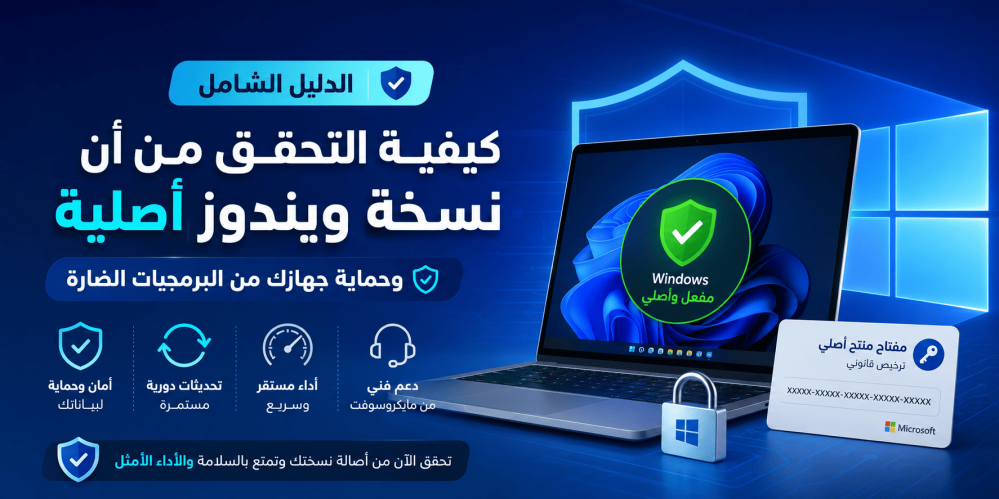
The Comprehensive Guide: How to Check if Your Windows Version is Genuine and Protect Your Device from Malware
In today's digital world, the Windows operating system represents the backbone of most computers worldwide, whether for personal, educational, or professional use. However, pirated or non-genuine versions are widespread, exposing users to countless security and technical risks. Knowing how to check if your Windows version is genuine is not just a luxury; it is a necessary step to ensure the stability of your system and the protection of your sensitive data.
When you own a genuine copy like Windows 11 Home, you don't just get an operating system; you get a promise from Microsoft for security, continuous updates, and technical support. In this article, we will dive into the technical and practical details that enable you to uncover the truth about the version installed on your device and explain the fundamental differences between various license types.
Why Should You Care if Your Windows Version is Genuine?
Before we get into the verification steps, it is important to understand "why" we give this topic such great importance. A genuine version means you are using software that has been tested and documented by Microsoft.
1. Cybersecurity and Data Protection
Cracked versions often have their system files modified to disable activation verification mechanisms. These modifications open "backdoors" that hackers can exploit to steal your data, plant ransomware, or monitor your online activity.
2. Regular Updates and Security
Microsoft releases monthly security updates to fix discovered vulnerabilities. Non-genuine versions may be deprived of these updates, or installing updates might cause the system to crash entirely, leaving your device vulnerable to modern attacks.
3. Stability and Performance
Genuine versions provide stable performance and full compatibility with drivers. Modified versions often suffer from sudden crashes (BSOD) and slow processing speeds due to malicious programs running in the background.
How to Check if Windows is Genuine via Settings
This is the simplest and most direct method that any user can perform in just a few seconds.
Verification Steps in Windows 10 and 11:
- Open the Start menu and click the gear icon to access Settings.
- Go to the System section.
- Look for the Activation option in the sidebar or main menu.
- Your activation status will appear here. If the version is genuine, you will see one of the following messages:
- Windows is activated with a digital license: This means your device is linked to a legal digital license.
- Windows is activated with a digital license linked to your Microsoft account: This is the best-case scenario, as the license is linked to your digital identity, making reactivation easier when changing hardware like a hard drive.
Technical Tip: If you see a message stating "Windows is activated using your organization's activation service" and you are a home user, this is often a red flag indicating the version was activated using illegal tools like KMS.
Verifying Windows Genuineness Using Command Prompt (CMD)
For professionals or those who want more precise details, the Command Prompt provides powerful tools to reveal license details.
Method 1: Using the Quick Scan Command
- Search for CMD in the Start menu and open it as an administrator (Run as administrator).
- Type the following command and press Enter: slmgr.vbs /xpr
- A small window will appear. If the version is genuine and permanent, the message will say: The machine is permanently activated. If an expiration date appears, it means the version is temporary or "cracked" via a fake activation server.
Method 2: Obtaining Full License Details
This command is the most important of all, as it reveals the channel from which the license originated.
- In the CMD window, type the following command: slmgr.vbs /dlv
- Wait a few seconds for a detailed window to appear. Look for the line Product Key Channel:
- Retail: Refers to a genuine version purchased separately, which can be transferred from one device to another.
- OEM: Refers to a genuine version pre-installed on laptops, which is tied to the motherboard.
- Volume (GVLK): If you see this option on your personal device, there is a high probability it is an illegal version activated with external tools, unless you work for a large company with volume subscriptions.
Differences Between Windows License Types: What Do the Results Mean?
To understand the previous search results, you must know the types of licenses Microsoft provides:
| License Type | Description | Is it Genuine? |
| Retail | A license you buy from authorized stores like Active Key. | Yes, 100% |
| OEM | Comes built-in with new devices from the factory (e.g., HP, Dell). | Yes, 100% |
| Volume (KMS) | A license intended for large companies owning thousands of devices. | Genuine for companies, suspicious for individuals |
| Cracked/KMSPico | Programs that trick Windows into thinking it is activated. | Non-genuine and dangerous |
Warning Signs That a Version is Non-Genuine
Beyond technical commands, there are signs that appear during device use indicating a problem with system authenticity:
- Watermark: A transparent message appearing in the corner of the screen asking you to activate Windows.
- Personalization Disabled: Inability to change the desktop background, colors, or system themes.
- "License Expired" Messages: Cracked versions often require reactivation every 180 days.
- Persistent Security Alerts: Receiving notifications from Windows Defender indicating suspicious or disabled system files.
Risks of Using "Free Windows Activation" Tools
Some people resort to searching for free keys or activation programs like (KMSPico). Here is what actually happens when you use them:
- Disabling the Firewall: These programs ask you to turn off your antivirus before running them; this is when malware is planted.
- Resource Consumption: Cryptojacking software is often bundled with these tools, making your device very slow.
- Privacy Violation: These tools can access saved passwords in your browser and your personal photos.
To avoid all these risks, the solution lies in obtaining a legal product key. For example, Windows 11 Home provides all modern security features at an affordable price, saving you from the risk of destroying your device with suspicious software.
How to Get and Activate a Genuine Windows Copy
If you discover your version is not genuine, there's no need to worry. You can often correct the situation without needing to format the device.
Correct Activation Steps:
- Purchase a genuine product key from a reliable source.
- Go to Settings > System > Activation.
- Click on Change product key.
- Enter the 25-character code you received.
- Windows will connect to Microsoft servers and validate the version immediately.
Frequently Asked Questions About Windows Authenticity (FAQ)
1. Can Windows suddenly become non-genuine?
Yes, this can happen if you change major hardware components like the "motherboard," or if the key you previously used is found to belong to a license channel not intended for individuals.
2. What is the difference between "Activated" and "Genuine"?
The two terms are related, but "Activated" means the system has been accepted programmatically, while "Genuine" means this activation was done through a legal license issued by Microsoft and has not been tampered with.
3. Are Windows updates enough to confirm authenticity?
Not always. Some sophisticated cracked versions can receive updates for a while before Microsoft detects and blocks them.
4. Does non-genuine Windows affect gaming?
Absolutely. Non-genuine versions may lack essential DLL files, and malware associated with cracks consumes the CPU and RAM, reducing your frame rate (FPS).
5. Is an OEM license genuine?
Yes, OEM licenses are fully genuine, but their drawback is that they are tied to only one device and cannot be transferred to another device in the future.
6. How do I know the key I bought is genuine before using it?
There is no way to tell just by looking at the code, so you should always buy from reputable stores like "Active Key" which guarantees your rights.
7. What happens if I don't activate Windows?
The system will still work, but you will lose personalization features, a persistent watermark will appear, and some important security updates may stop reaching you.
8. Can a Windows 10 key be used to activate Windows 11?
Yes, Microsoft currently allows Windows 10 users to upgrade to Windows 11 and use the same key if the version is compatible (e.g., Home to Home).
9. Does a CMD check show product key details?
The command slmgr.vbs /dlv shows only the last 5 characters of the key for security purposes, which is enough to confirm the license type and status.
10. Does formatting delete the original activation?
If you have a digital license linked to your device or Microsoft account, Windows will activate automatically as soon as you connect to the internet after formatting.
Expert Advice from "Active Key"
Investing in genuine software is an investment in your peace of mind. Do not risk your banking data or work files just to save a small amount. Using an original operating system like Windows 11 Home ensures you get the latest AI technologies and security features like Windows Hello and BitLocker.
Owning a genuine copy gives you the right to direct technical support and ensures your device remains fast and stable for years without the need for frequent system reinstalls due to "crack" issues.
Suggested Products
- Windows 11 Home
- Product Link
- The ideal choice for home users and students, providing a modern interface and superior security with full support for all Microsoft updates.
Related Articles
You might also be interested in our other guides to ensure the best experience with Microsoft products:
- How to upgrade from Windows 10 to Windows 11 for free.
- The difference between Windows Home and Pro: Which one to choose?
- How to protect your device from ransomware.
Conclusion: The process of checking if your Windows version is genuine is the first step toward a secure digital work environment. Using the tools we explained, such as CMD and system settings, you can now verify it yourself. If you are looking for excellence and reliability, our store provides you with the best genuine digital solutions with a full guarantee.