
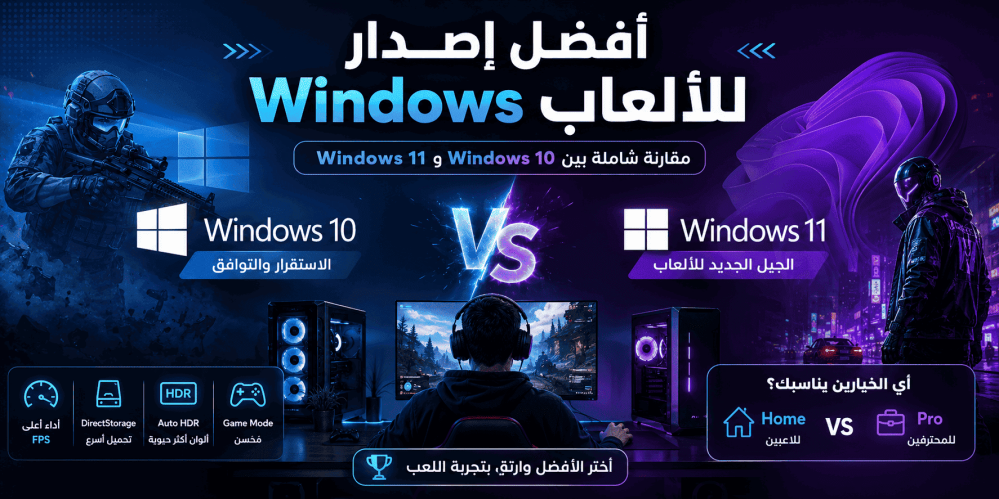
Best Windows Version for Gaming: Comprehensive Comparison Between Windows 10 and Windows 11
When building a new gaming PC or upgrading your current operating system, one fundamental question arises in every gamer's mind: what is the best Windows version for gaming? Should you stick with the tried-and-tested Windows 10, or make the leap to Windows 11 with its modern features and cutting-edge technologies? And is there a real difference between the Home and Pro editions when it comes to the gaming experience?
In this comprehensive guide, we will provide you with clear and detailed answers backed by technical facts and performance test results, to help you make the right decision.
Windows 10 for Gaming: Is It Still a Good Choice?
Windows 10 was launched in 2015 and quickly became the operating system of choice for gamers thanks to its high stability and broad compatibility with a vast library of games. However, with the official end-of-support date approaching in October 2025, the question arises: is Windows 10 still a sensible choice for gaming?
Windows 10 Gaming Performance
To this day, Windows 10 delivers excellent gaming performance. Most performance benchmarks show that the difference in frame rates (FPS) between Windows 10 and Windows 11 is negligible in games that do not leverage Windows 11's exclusive technologies. If you have a mid-range or high-end system and play games that rely on DirectX 11 or older versions, you will get a nearly identical experience on both operating systems.
Gaming Features in Windows 10
Windows 10 includes several gaming-focused features:
- Game Mode: A mode that optimizes gaming performance by intelligently allocating system resources.
- Game Bar: A built-in toolbar for recording clips, streaming games, and monitoring performance.
- DirectX 12: An advanced graphics API that improves CPU and GPU utilization efficiency.
- Broad Compatibility: Supports virtually all modern and older games without issues.
When Is Windows 10 a Suitable Choice?
Windows 10 may be a good choice in the following scenarios:
- If your system does not meet Windows 11 requirements (especially TPM 2.0).
- If you play older games that do not benefit from Windows 11 technologies.
- If you prefer absolute stability and fear compatibility issues.
However, with the end of support approaching, staying on Windows 10 becomes an increasing security risk. After October 2025, you will no longer receive security updates, exposing your system to vulnerabilities.
Windows 11 for Gaming: The Next Generation of Gaming Experience
Windows 11 was designed from the ground up to be the ultimate gaming operating system. Microsoft has stated that Windows 11 is "the best Windows for gaming ever." Let's explore the features that make this claim true.
DirectStorage: A Revolutionary Technology for Game Loading
DirectStorage is the most impactful technology for the gaming experience on Windows 11. This technology was originally exclusive to Xbox Series X|S consoles, and Microsoft then brought it to PCs.
How does it work?
- In traditional systems, game data passes through the central processor (CPU) before reaching the graphics card (GPU), causing a performance bottleneck.
- With DirectStorage, data is transferred directly from the NVMe SSD storage drive to the graphics card, bypassing the CPU.
- The result: significantly reduced loading times, and more detailed game worlds that load almost instantly.
This technology requires:
- Windows 11 (or Windows 10 version 1909 and above with limited support).
- An NVMe SSD with at least 1 TB capacity (recommended).
- A graphics card that supports DirectX 12 Ultimate.
Auto HDR: More Vibrant Colors
Auto HDR technology automatically enhances image quality in games originally designed with SDR (Standard Dynamic Range), making them look closer to HDR games.
- Adds greater color depth.
- Improves contrast between bright and dark areas.
- Works automatically without complex configuration.
- Requires an HDR-capable monitor.
This feature is exclusive to Windows 11 and makes a noticeable visual difference in hundreds of games.
Enhanced Game Mode
In Windows 11, Game Mode has received substantial improvements:
- Better system resource management.
- Reduced background process interference during gameplay.
- Improved frame rate stability.
- Better support for multitasking technologies.
DirectX 12 Ultimate
Windows 11 fully supports DirectX 12 Ultimate, which includes:
- Ray Tracing: Realistic simulation of lighting and reflections.
- Variable Rate Shading (VRS): Performance optimization by allocating GPU processing power to the most important areas of the scene.
- Mesh Shaders: More efficient processing of complex geometry.
- Sampler Feedback: Smarter texture loading.
Next-Generation Processor Support
Windows 11 leverages the architecture of Intel 12th-generation processors and above (Alder Lake and later) thanks to Intel Thread Director, which optimizes task scheduling between high-performance cores (P-cores) and efficiency cores (E-cores). This means:
- Better gaming performance.
- Lower power consumption.
- A smoother experience when running multiple applications alongside a game.
Gaming Performance Comparison: Windows 10 vs Windows 11
Let's review an objective comparison between the two systems in terms of the aspects that matter to gamers:
| Feature | Windows 10 | Windows 11 | |
| DirectStorage | Limited support | Full support | |
| Auto HDR | Not available | Available | |
| DirectX 12 Ultimate | Partial support | Full support | |
| Game Mode | Basic | Enhanced | |
| Next-gen processor support | Limited | Full | |
| Frame rate (FPS) | Excellent | Excellent (very close) | |
| System stability | Very high | High | |
| Older game compatibility | Excellent | Very good | |
| Security updates | Until October 2025 | Ongoing | |
| User interface | Traditional | Modern and improved |
As the table shows, the difference in raw frame rates between the two systems is very slight in most games. However, Windows 11 clearly excels in modern features that enhance the overall gaming experience, especially with new games that leverage DirectStorage and Auto HDR.
Windows 11 Home vs Windows 11 Pro for Gaming
When purchasing a Windows 11 license, you will face two main options: Home and Pro. The question many gamers ask: is there a difference in gaming performance between the two editions?
The short answer: there is no difference in gaming performance between Windows 11 Home and Windows 11 Pro.
Both editions use the same kernel and the same resource management system. All the gaming features we mentioned earlier — DirectStorage, Auto HDR, Game Mode, and DirectX 12 Ultimate — are available in both editions.
Key Differences Between Home and Pro
| Feature | Windows 11 Home | Windows 11 Pro | |
| DirectStorage | ✓ | ✓ | |
| Auto HDR | ✓ | ✓ | |
| Game Mode | ✓ | ✓ | |
| DirectX 12 Ultimate | ✓ | ✓ | |
| BitLocker (drive encryption) | ✗ | ✓ | |
| Remote Desktop | ✗ | ✓ | |
| Hyper-V (virtual machines) | ✗ | ✓ | |
| Windows Sandbox | ✗ | ✓ | |
| Group Policy Editor | ✗ | ✓ | |
| RAM support | Up to 128 GB | Up to 2 TB | |
| Dual physical CPU support | ✗ | ✓ |
Does a Gamer Need Windows 11 Pro?
For the vast majority of gamers, Windows 11 Home is perfectly sufficient. However, there are cases where Windows 11 Pro may be a better choice:
- If you are a content creator: Features like BitLocker and Remote Desktop are useful for content producers who handle sensitive data or need remote access.
- If you do live streaming: Better network and resource management.
- If you use your PC for both gaming and work: Pro features make the device more flexible for professional use.
- If you plan to use advanced setups: Such as multiple processors or massive amounts of memory.
If you are looking for a genuine license that gives you all the professional features of Windows 11 with flexibility for both personal and professional use, Windows 11 Pro is a smart investment that guarantees a complete experience without any compromises.
Windows 11 Gaming Requirements
Before moving to Windows 11, make sure your system meets the minimum requirements:
| Requirement | Minimum | |
| Processor | 1 GHz, dual-core, 64-bit | |
| Memory (RAM) | 4 GB | |
| Storage | 64 GB | |
| TPM | Version 2.0 | |
| Secure Boot | Supported | |
| DirectX 12 | Compatible graphics card | |
| Display | 720p, 9 inches |
TPM 2.0 and Secure Boot
The most controversial requirement is TPM 2.0. This chip or technology integrated into the processor provides additional hardware-level security. Most modern motherboards support TPM 2.0, but you may need to enable it in the BIOS settings.
Supported Processors
Windows 11 officially supports:
- Intel 8th-generation processors and above.
- AMD Ryzen 2000 processors and above.
If your processor is older, you can install Windows 11 by bypassing these requirements, but Microsoft does not recommend this and you may not receive updates.
Tips to Optimize Gaming Performance on Windows
Whether you choose Windows 10 or Windows 11, there are a number of settings that significantly improve gaming performance:
1. Update Graphics Card Drivers
Always make sure to install the latest graphics card drivers:
- NVIDIA: Via GeForce Experience or the official website.
- AMD: Via AMD Adrenalin or the official website.
- Intel: Via Intel Driver & Support Assistant.
Latest drivers include game-specific optimizations and can make a difference of up to 10-15% in performance.
2. Enable Game Mode
- Open Settings > Gaming > Game Mode.
- Make sure the option is enabled.
- This prevents Windows Update from restarting during gameplay and improves resource allocation.
3. Disable Unnecessary Background Programs
- Open Task Manager (Ctrl + Shift + Esc).
- Go to the Startup tab.
- Disable programs you don't need at system startup.
4. Adjust Power Settings
- Go to Control Panel > Power Options.
- Select the High Performance or Ultimate Performance plan (if available).
- This ensures maximum performance from the CPU and GPU.
5. Optimize In-Game Graphics Settings
- Use DLSS (from NVIDIA) or FSR (from AMD) technologies to improve performance without significant sacrifice in image quality.
- Try lowering shadow and reflection settings first, as they are the most resource-intensive.
- Cap the frame rate to match your monitor's refresh rate.
6. Use an NVMe SSD
If you are still using a traditional hard drive (HDD), upgrading to an NVMe SSD will make a massive difference in:
- Game loading speed.
- Loading speed of open-world environments and systems.
- Overall system responsiveness.
7. Monitor System Temperatures
High temperatures lead to thermal throttling, meaning the CPU and GPU automatically reduce performance to protect the hardware. Use programs like HWMonitor or MSI Afterburner to monitor temperatures and ensure adequate cooling.
Conclusion: What Is the Best Windows Version for Gaming?
After this comprehensive comparison, we can offer the following recommendations:
| Your Situation | Recommendation | |
| New PC with modern specs | Windows 11 | |
| Older PC that doesn't support TPM 2.0 | Windows 10 (until October 2025) | |
| Gamer who wants the latest technologies | Windows 11 | |
| Gamer who only cares about stability | Windows 10 (temporarily) | |
| Gamer + professional use | Windows 11 Pro | |
| Casual gamer with no special needs | Windows 11 Home |
Final Verdict:
If you are building a new gaming PC or considering upgrading your system, Windows 11 is the undisputed best choice. Technologies like DirectStorage, Auto HDR, and DirectX 12 Ultimate make it the ideal gaming platform for the present and the future. The difference in raw performance may be slight today, but the gap will widen in favor of Windows 11 as more games are released that leverage its exclusive technologies.
As for the choice between Home and Pro, the decision depends on your additional needs. If you are looking for a complete Windows experience without any limitations, with professional features you may need someday, Windows 11 Pro gives you all of that without affecting your gaming performance.
Frequently Asked Questions
1. Is Windows 11 faster than Windows 10 for gaming?
In most current games, the difference in frame rates (FPS) between Windows 10 and Windows 11 is very slight, ranging between 1-3 frames per second. However, Windows 11 excels in technologies like DirectStorage, which significantly reduces loading times, and Auto HDR, which improves image quality. Over time, more games will benefit from these technologies.
2. Can all games run on Windows 11?
Yes, the vast majority of games run on Windows 11 without issues. You may encounter compatibility problems with some very old games (released before 2010), but these are rare cases. Most gaming platforms like Steam, Epic Games Store, and Xbox Game Pass work perfectly on Windows 11.
3. Is Windows 11 Pro better than Home for gaming?
There is no difference in gaming performance between Windows 11 Pro and Windows 11 Home. All gaming features are available in both editions. The only difference lies in additional features like BitLocker, Remote Desktop, and Hyper-V, which are geared toward professional use.
4. Should I upgrade from Windows 10 to Windows 11?
If your system meets Windows 11 requirements, the upgrade is recommended. You will get modern gaming features, an improved user interface, and ongoing security updates. The upgrade is free for genuine Windows 10 users.
5. What are the DirectStorage requirements on Windows 11?
To run DirectStorage, you need:
- Windows 11 (or Windows 10 version 1909+ with limited support).
- An NVMe SSD (PCIe 4.0 recommended).
- A graphics card that supports DirectX 12 Ultimate (such as NVIDIA RTX 2000 and above, or AMD RX 6000 and above).
6. Can I use Windows 11 without an internet connection?
Yes, you can use Windows 11 without an internet connection. However, you will need an internet connection during the initial setup (for the Home edition), and to download updates and device drivers. After installation, you can play offline.
7. How much does it cost to upgrade from Windows 10 to Windows 11?
The upgrade from Windows 10 to Windows 11 is completely free if you have a genuine Windows 10 license. However, if you are doing a fresh install on a device without a license, you will need to purchase a new license.
8. Does Windows 11 support all gaming peripherals?
Yes, Windows 11 supports all modern gaming peripherals such as controllers (Xbox, PlayStation, and Nintendo Switch Pro), racing wheels, flight sticks, headsets, and more. Most of these devices work with Plug and Play technology.
9. Does Windows 11 consume more resources than Windows 10?
Windows 11 has slightly higher system requirements than Windows 10, but the difference in resource consumption during gaming is minimal. In some tests, Windows 11 was more efficient at memory management. With 16 GB of RAM or more, you won't notice any difference.
10. What is the best Windows version for older games?
For very old games (pre-2010), Windows 10 may be more compatible. However, most older games work on Windows 11 without issues, especially when using Compatibility Mode. If you encounter a problem, you can try running the game in compatibility mode for Windows 7 or Windows XP.
11. Can I install Windows 11 on a device that doesn't support TPM 2.0?
Yes, you can bypass the TPM 2.0 and Secure Boot requirements through registry modifications during installation. However, Microsoft does not recommend this, and you may not receive all security updates. If your device does not support TPM 2.0, staying on Windows 10 until you upgrade your hardware is the safer option.
12. Will Windows 10 become obsolete for gaming after 2025?
After October 2025, Windows 10 will stop receiving security updates. This does not mean games will suddenly stop working, but using an unsupported operating system exposes your device to increasing security risks. Additionally, new games may require Windows 11 to leverage technologies like DirectStorage. Therefore, planning an upgrade before this date is the smartest choice.
Suggested Products
If you are looking for a genuine license that gives you the best possible gaming experience, here are our suggestions:
- Windows 11 Pro – The full professional edition of Windows 11. It gives you all the advanced gaming features like DirectStorage, Auto HDR, and DirectX 12 Ultimate, in addition to professional features like BitLocker and Remote Desktop. The ideal choice if you want a complete Windows experience without any compromises, whether for gaming or professional use.