
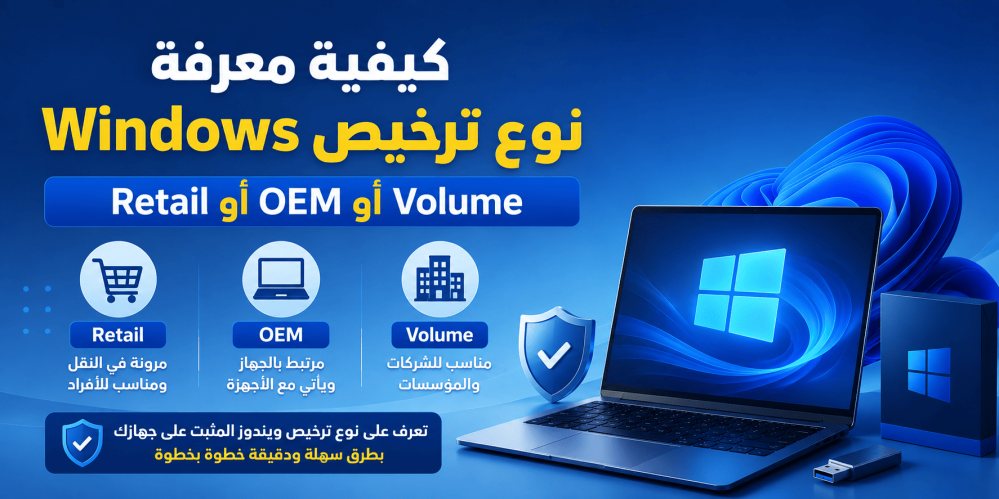
How to Check Your Windows License Type (Retail, OEM, or Volume)
When purchasing a new computer or installing Windows, many users don't pay attention to the license type used to activate the operating system. However, knowing whether your Windows license is Retail, OEM, or Volume is important, especially if you plan to upgrade your computer, transfer the license to another device, or purchase a new genuine product key.
Each license type has different advantages and limitations, and choosing the right one can affect your ability to transfer the license, maintain activation, and use Windows in the future.
In this guide, you'll learn the differences between Windows license types, how to identify the license installed on your computer using multiple methods, and when you may need to purchase a new license.
What Is a Windows License?
A Windows license is Microsoft's official authorization that allows you to use the Windows operating system legally. The license is linked to either a Product Key or a Digital License, and it defines how Windows can be used and what rights are granted to the user.
There are three main types of Windows licenses:
- Retail
- OEM
- Volume
Although all of them activate Windows in the same way, the main difference lies in how the license is distributed and whether it can be transferred between devices.
Types of Windows Licenses
Retail License
A Retail license is the best option for most individual users.
It is purchased separately from an authorized retailer or directly from Microsoft, then activated on your computer.
Its main advantages include:
- Can be transferred to another computer.
- Ideal for personal use.
- Receives all Windows updates.
- Supports reinstalling Windows without losing the license.
- The best choice if you plan to upgrade your PC in the future.
If you replace your computer completely, you can deactivate the license on the old device and activate it on a new one, subject to Microsoft's licensing terms.
OEM License
OEM stands for Original Equipment Manufacturer.
This license comes pre-installed on computers from manufacturers such as:
- Dell
- HP
- Lenovo
- ASUS
- Acer
It is tied to the computer's motherboard, which means it generally cannot be transferred to another device.
Its main advantages include:
- Lower cost than Retail.
- Included with new computers.
- Usually does not require entering the product key manually.
- Automatically activates when Windows is reinstalled on the same device.
Its primary limitation is that replacing the motherboard usually causes the license to become invalid.
Volume License
This type of license is designed for businesses, organizations, universities, and government institutions.
Instead of purchasing one license for each computer, organizations buy a volume agreement that allows them to activate multiple devices.
Its characteristics include:
- Suitable for managing hundreds or thousands of computers.
- Often relies on internal activation servers.
- Not intended for personal use.
- May stop working if the computer leaves the organization's activation environment.
If you purchased a license advertised as Volume for personal use, it may not be the best choice because it could depend on the organization's activation policies.
Windows License Comparison
| FeatureRetailOEMVolume | |||
| Suitable for Individuals | ✅ | ✅ | ❌ |
| Comes with New Computers | ❌ | ✅ | ❌ |
| Can Be Transferred to Another Computer | ✅ | ❌ | Depends on the organization |
| Suitable for Businesses | ❌ | ❌ | ✅ |
| Tied to the Motherboard | ❌ | ✅ | No |
| Best for Personal Use | ⭐⭐⭐⭐⭐ | ⭐⭐⭐⭐ | ⭐ |
Why Should You Know Your Windows License Type?
Knowing your license type helps you make the right decisions before making changes to your computer.
Some of the main reasons include:
- Verify that your license is genuine.
- Determine whether the license can be transferred to another computer.
- Avoid purchasing the wrong type of license.
- Understand why activation is lost after replacing the motherboard.
- Choose the correct license when buying Windows.
Method 1: Check Your License Type Using Command Prompt
This is the easiest and most accurate method.
Steps
- Open the Start menu.
- Type CMD.
- Run Command Prompt as Administrator.
- Type the following command:
Then press Enter.
A window will appear displaying your licensing information.
Look for one of these terms:
- Retail
- OEM
- Volume
Your license type will be displayed directly.
Method 2: Use the slmgr /dlv Command
If you want more detailed information, use:
slmgr /dlvThis command displays additional information such as:
- License type
- Activation status
- Installation ID
- Licensing information
- License channel
This is the method commonly used by IT professionals when checking Windows licenses.
Method 3: Check Activation Status Only
You can also run:
slmgr /xprYou'll see one of the following results:
- Windows is permanently activated.
- Or the activation expiration date if the license is temporary.
Keep in mind that this command shows the activation status only, not the license type.
How to Identify a Retail License
If you see:
RETAIL channelyour Windows installation is using a Retail license.
This is the best choice for users who frequently upgrade or replace their computers.
How to Identify an OEM License
If you see:
OEM_DM channelor
OEM channelyour license is tied to your current computer and generally cannot be transferred to another device.
How to Identify a Volume License
If you see one of the following:
- VOLUME_KMSCLIENT
- VOLUME_MAK
your Windows installation is using a Volume License intended for organizations.
If you're a home user and your license shows this type, it's a good idea to verify where the product key came from.
When Should You Buy a New Windows License?
You may need a new license if:
- You built a new computer.
- You replaced the motherboard.
- You lost your previous license.
- You purchased a computer without Windows.
- You want to switch from a non-genuine copy to a genuine Windows license.
If you're looking for a genuine license for personal use, Windows 10 Home is an excellent choice for most users, providing all the essential Windows features along with official Microsoft updates.
Product Link:
https://active-key.com/ar/ويندوز-10-هوم/p1366976459
Common Mistakes When Checking a Windows License
Some of the most common mistakes include:
- Assuming that all Windows keys are the same.
- Purchasing a Volume license for personal use.
- Confusing the Windows edition with the license type.
- Using unreliable third-party tools to identify the license.
- Believing that replacing the hard drive causes activation to be lost, while OEM licenses are generally tied to the motherboard instead.
Tips Before Buying a Windows License
Before purchasing any Windows activation key, make sure to:
- Verify which license type you need.
- Buy only from a trusted store.
- Choose the Windows edition that matches your needs.
- Keep your product key in a safe place.
- Link your license to your Microsoft account whenever possible to simplify future recovery.